Free · in your browser · no signup
Free crochet pattern designer and chart maker
The Dragonette pattern designer is a free, browser-based crochet chart maker: you draw a crochet chart with standard Craft Yarn Council (CYC) or Japanese (JIS) symbols, freely or on a rectangular, granny square or circular guide grid. There is nothing to install and no account to create; your work stays for as long as the browser tab is open.
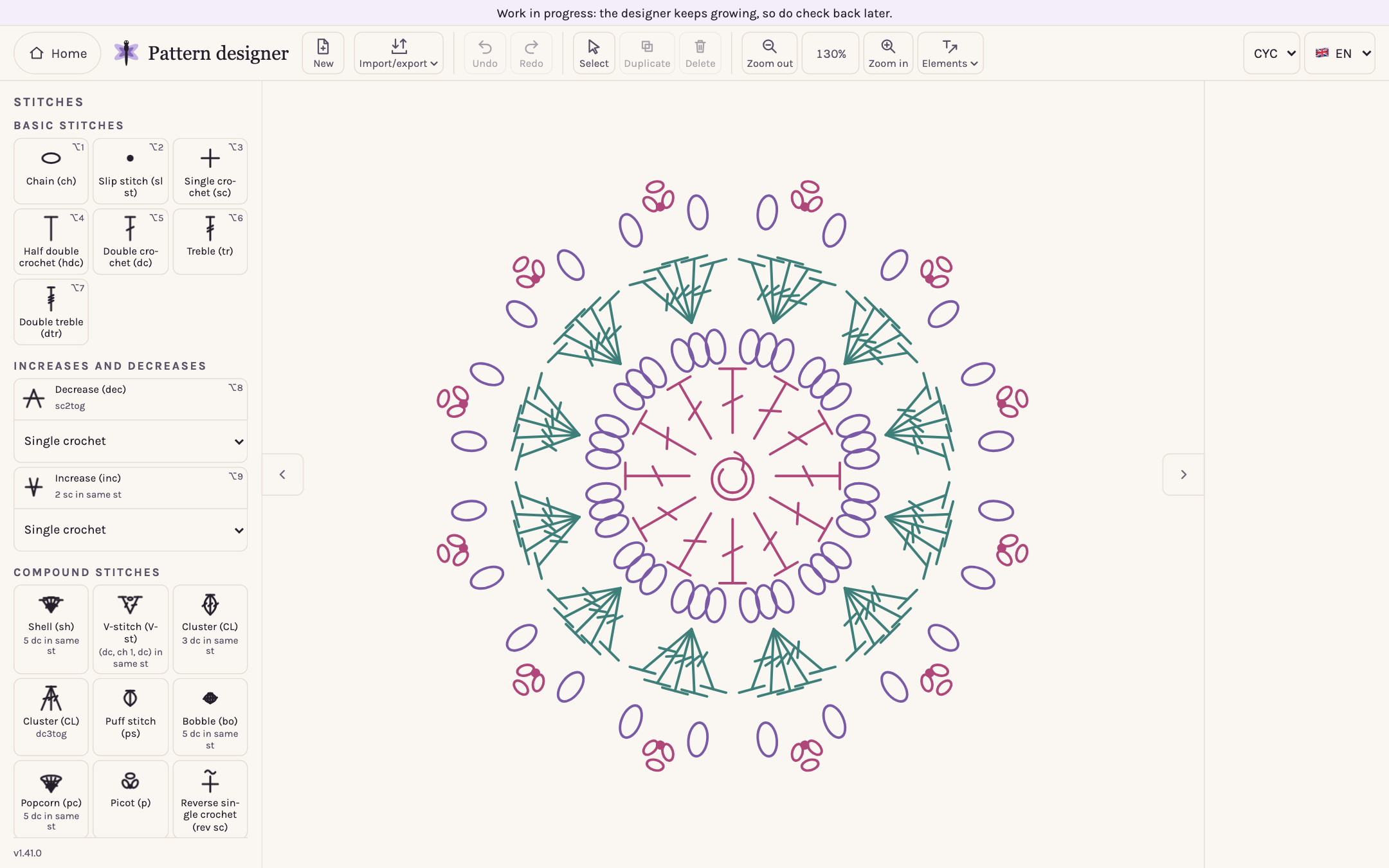
At a glance
| Price | Free. Every feature works without an account or subscription. |
|---|---|
| Signup | Not needed. |
| Where it runs | In your web browser, at app.dragonettecrochet.com. Nothing to install; most comfortable on a desktop or laptop. |
| Interface language | English and Hungarian; it opens in English. |
| Symbols | Standard Craft Yarn Council (CYC) symbols, or Japanese (JIS) symbols. |
| Saving | Your pattern survives a reload, but closing the browser tab loses it. No lasting save, file saving or export yet. |
| Version | 1.33.0 (October 2026) |
What the pattern designer does
| Feature | What it does |
|---|---|
| Free-form design | Pick a stitch in the palette (or with Alt+1…9) and click where it goes. While a stitch is picked, a faint preview of it follows the mouse, so you can see where it will land. |
| 20 tiles in the palette | Chain, slip stitch, single crochet, half double crochet, double crochet, treble and double treble; increase and decrease; shell, V-stitch, two kinds of cluster, puff, bobble, popcorn, picot, reverse single crochet, invisible decrease and magic ring. |
| Increases, decreases and counts | An increase or a decrease is one tile and a menu: you choose which stitch it is made of and how many parts it has (2–5). A basic stitch can be laid up to 10 at a time, in a row, with one click. |
| Rectangular grid | Give the stitches per row and the number of rows. The grid can be a guide only, or each stitch drops into its cell and a row grows to its tallest stitch. A second stitch in a taken cell is an increase, drawn as a fan. |
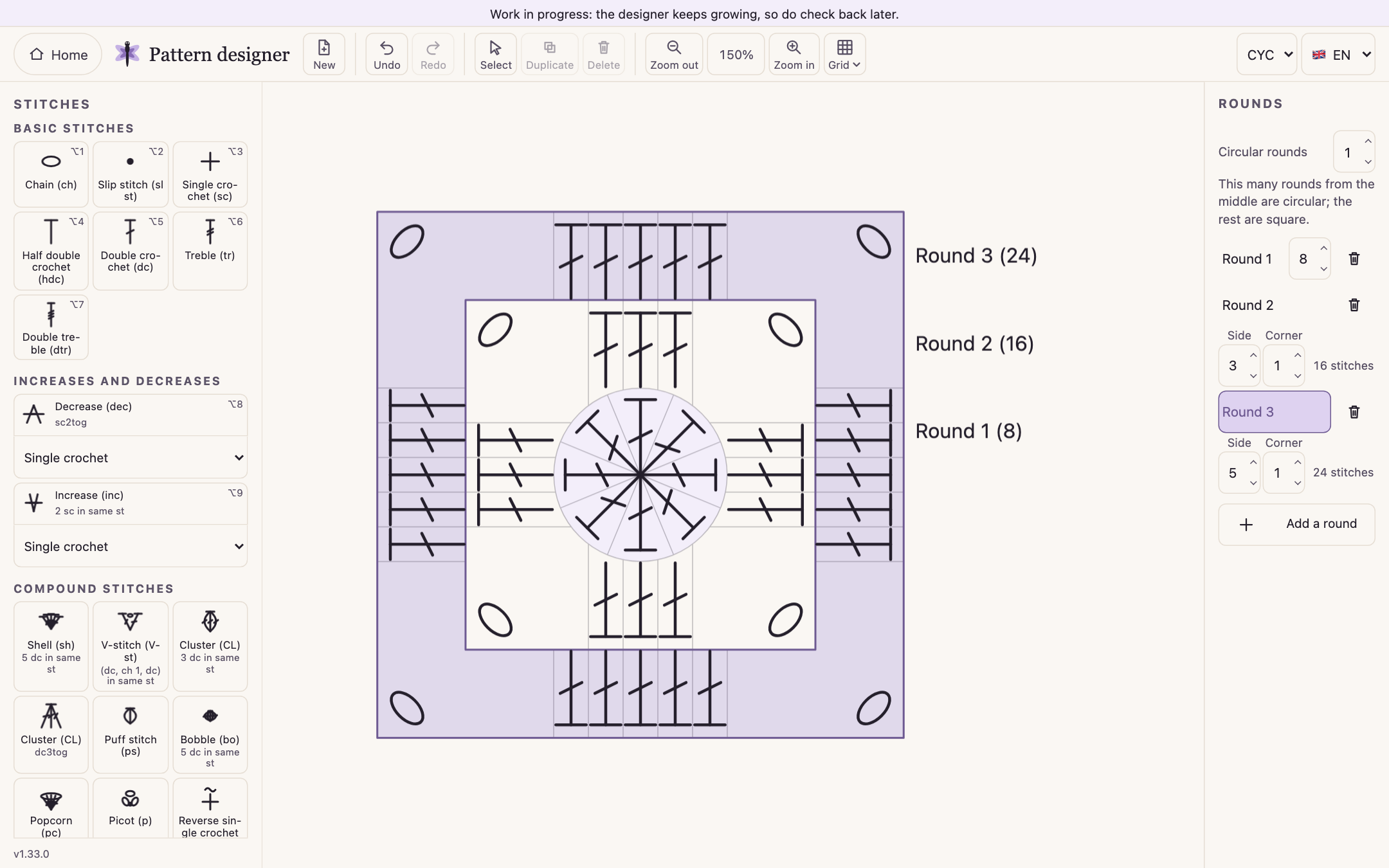
| Granny square and circle | Start from the stitch count of the first round and add or delete rounds in the Rounds panel; on the square rounds of a granny square you set the stitches per side and per corner. Each stitch drops into its cell and can turn outwards. |
| Selecting and editing | Select with a click, an area or Shift+click; move, turn, resize, duplicate or delete the selection. Undo and redo cover every step. |
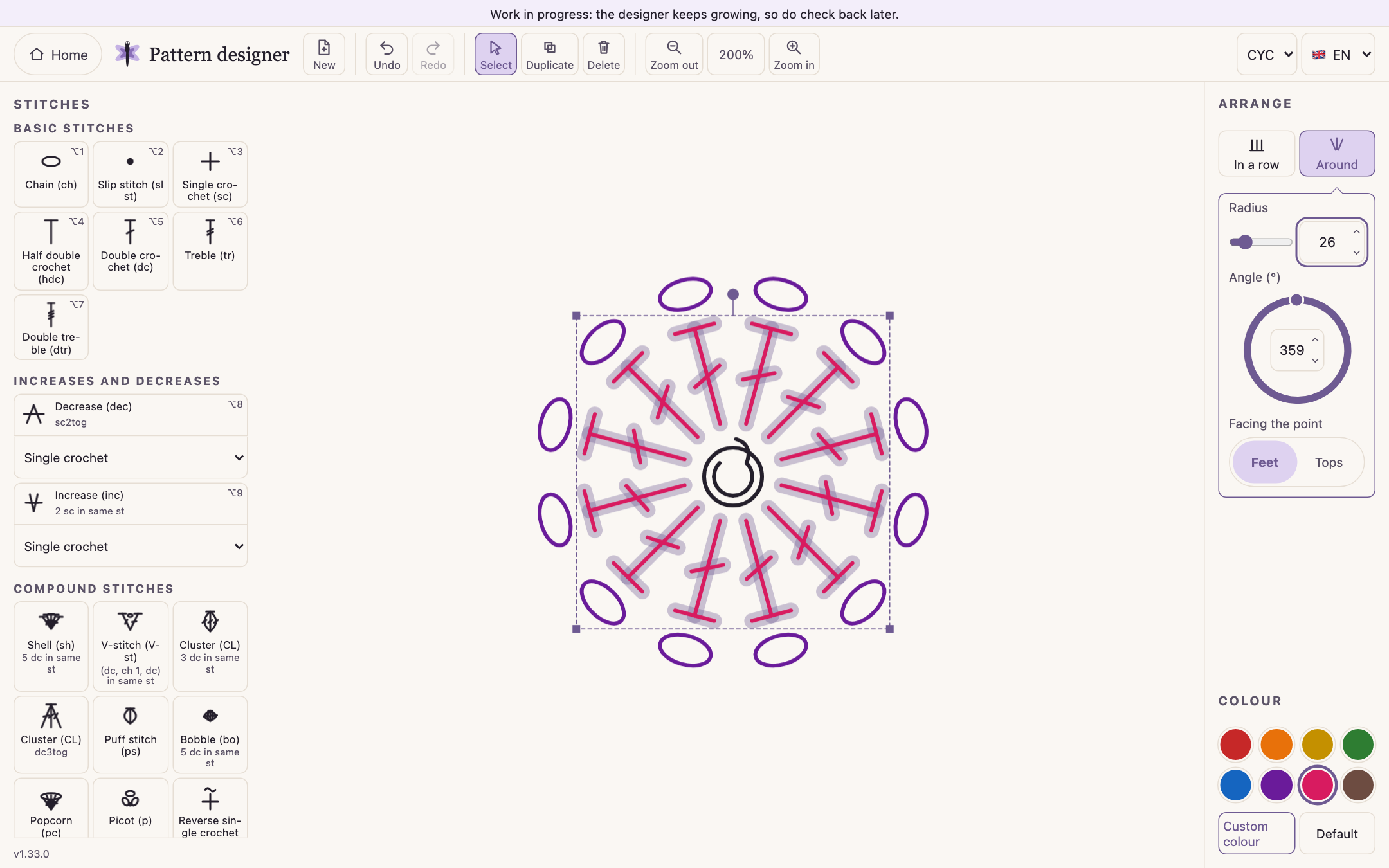
| Arrange | Lays the selected stitches in a row or around a point: in a row with a spacing, around with a radius and an angle, feet or tops towards the point. At the largest angle (359°) they close into a ring. |
| Colours | Selected stitches can take one of eight colours or a colour of your own, and one button gives them back the default. |
| Zoom and view | Zoom from 50% to 800% with the buttons, the mouse wheel or a two-finger trackpad pinch; move the drawing by dragging it, with Space held, or with the middle mouse button. |
How to design a crochet chart with the designer
For a simple motif this is about all it takes. The order is not fixed: you can rearrange and colour stitches at any point.
Open the pattern designer
Go to app.dragonettecrochet.com. There is no signup and nothing to install; the designer opens in English, and you can switch to Hungarian in the top right corner.
Start a new pattern
In the New menu, pick Free-form design for an empty sheet, or under Regular design pick Rectangular, Granny square or Circle. The grid shapes ask for their size in a short dialog.
Place your stitches
Pick a stitch in the palette or with Alt+1…9 and click the drawing. The faint preview shows where it goes. To lay several at once, set the count on the right.
Select and arrange
Turn on Select, select the stitches, then lay them in a row or around a point in the Arrange panel on the right, and colour them in the Colour panel.
Adjust the view
Zoom in on the details and drag the drawing to move it. If something went wrong, Undo or Ctrl/⌘+Z takes it back step by step.
Who it is for
Anyone designing their own patterns who doesn’t want to push symbols around by hand in a drawing program. The pattern designer knows crochet symbols: you pick a stitch from the palette, the grid puts it in its place, and selected stitches can be laid in a row or around a point in one move.
It is also where I design my own patterns.
How it differs from Stitch Fiddle, Crochet Crafters or CrochetPop is set out, with sources, in the crochet pattern software comparison.
Every symbol the designer draws, with its US, UK and Hungarian name and abbreviation, is listed in the crochet symbols chart.
In beta: usable, and still growing
The pattern designer is under continuous development, but it has reached the beta stage: it is ready to use, and you can draw a chart in it from start to finish. If you find a bug or have a good idea, write to hello@dragonettecrochet.com — I am glad of every idea.
Frequently asked questions
Is there a free crochet pattern maker?
Yes. The Dragonette pattern designer is free: every feature works without an account, subscription or signup. You draw a crochet chart freely, or on a rectangular, granny square or circular grid.
Can I make a crochet chart online, without downloading software?
Yes. It runs in your web browser at app.dragonettecrochet.com, so there is nothing to download or install. It is most comfortable on a desktop or laptop, because the interface is built around a mouse and keyboard shortcuts.
Which crochet symbols does the chart maker use?
By default the standard Craft Yarn Council (CYC) symbols used in most English-language patterns. In the top right corner you can switch to Japanese (JIS) symbols, where single crochet is drawn as ×.
Can it generate a written crochet pattern from a chart?
Not at the moment. The designer was rewritten in October 2026 and the written pattern has not come back yet; for now it designs the chart.
How do I save or export my crochet chart?
Your pattern stays for as long as the browser tab is open: it survives a reload, but closing the tab loses it. There is no lasting save, no file saving and no PNG, SVG or PDF export yet.
Can I design granny squares and patterns worked in rounds?
Yes. The New › Regular design menu has a granny square and a circle: you give the stitch count of the first round, add rounds in the Rounds panel, and the stitches drop into the cells of their round.
Does the crochet pattern designer work on a phone or tablet?
It opens in mobile browsers, and you can place stitches with a tap, but the interface is built for a large screen, a mouse and a keyboard. For designing I recommend a desktop or laptop.